How to Install APK Files on Android
Description
Installing APK files on Android is one of the most useful ways to access applications that are not available on the Google Play Store. Many Android users download APK files to install older app versions, test beta releases, access region-restricted apps, or manually install apps shared by developers.
What Is an APK File?
APK stands for Android Package Kit. It is the installation file format used by Android devices.
You can think of an APK file as the Android version of a setup installer on Windows. When you download an app from the Play Store, Android secretly installs an APK in the background.
APK files contain:
- App code
- Images and graphics
- Security certificates
- App permissions
- Manifest configuration
- Resource files
All of these parts work together to install and run an Android application.
Here is an online game that helps you to understand the process by downloading it: Salam Bet
Why Install APK Files Manually?
There are several reasons why Android users manually install APK files.
1. Apps Not Available on Google Play
Some apps are distributed directly by developers.
2. Region-Locked Apps
Certain apps may not be available in specific countries.
3. Early Access to Updates
APK files allow users to test app versions before official release.
4. Installing Older Versions
Some users prefer older app versions because newer updates may remove features.
5. Beta Testing Apps
Developers sometimes provide APK files to testers.
Is Installing APK Files Safe?
Installing APK files can be safe when downloaded from trusted sources.
However, APK installation also carries risks.
Potential risks include:
- Malware
- Spyware
- Fake applications
- Data theft
- Device performance issues
To stay safe, users should always verify the source of an APK file.
Requirements Before Installing APK Files
Before installing APK files, make sure your Android device meets certain conditions.
Device Requirements
- Android phone or tablet
- Internet connection
- Enough storage space
- File manager app
- APK file downloaded successfully
Step-by-Step Guide: How to Install APK Files on Android
Installing APK files requires several steps.
Step 1: Download the APK File
The first step is downloading the APK file.
How to Download APK Files
- Open your browser
- Visit a trusted APK website or developer page
- Search for the app you want
- Tap Download APK
- Wait for the file to finish downloading
The APK usually appears in the Downloads folder.
Important Download Tips
- Avoid suspicious websites
- Check file size
- Verify app version
- Read user reviews
- Scan downloaded files
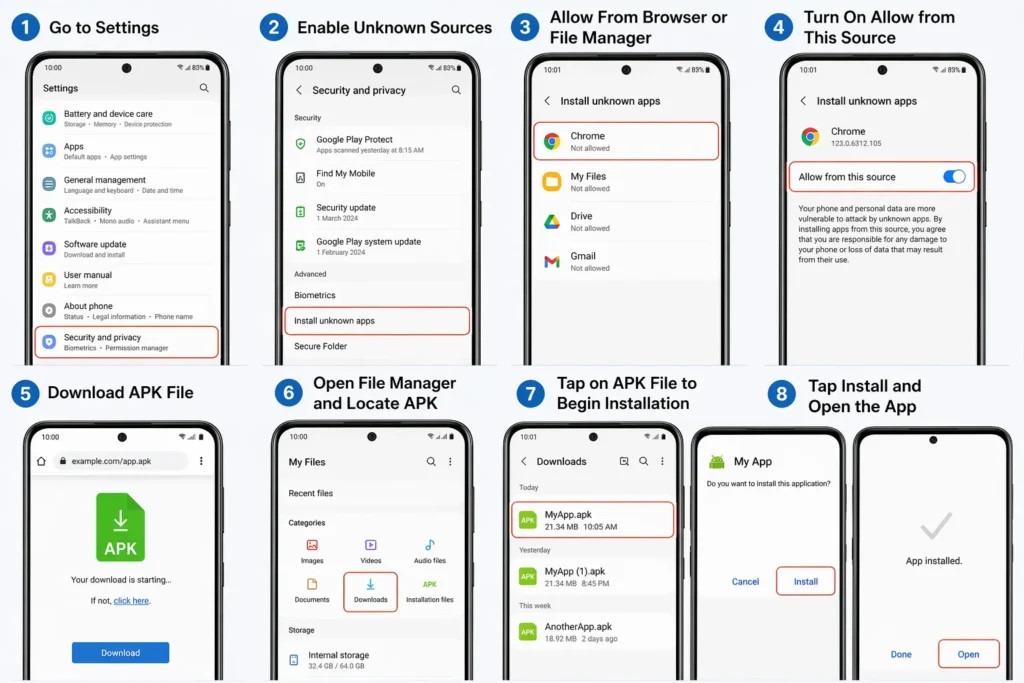
Step 2: Enable Unknown Sources Settings
Android blocks APK installation by default for security reasons.
To install APK files manually, you must allow installation from unknown sources.
What Are Unknown Sources?
Unknown sources refer to apps installed outside the Google Play Store.
Android considers these apps external installations.
How to Enable Unknown Sources on Android
For Android 8 and Above
- Open Settings
- Tap Apps & Notifications
- Select Special App Access
- Tap Install Unknown Apps
- Select the browser or file manager you use
- Turn on Allow from this source
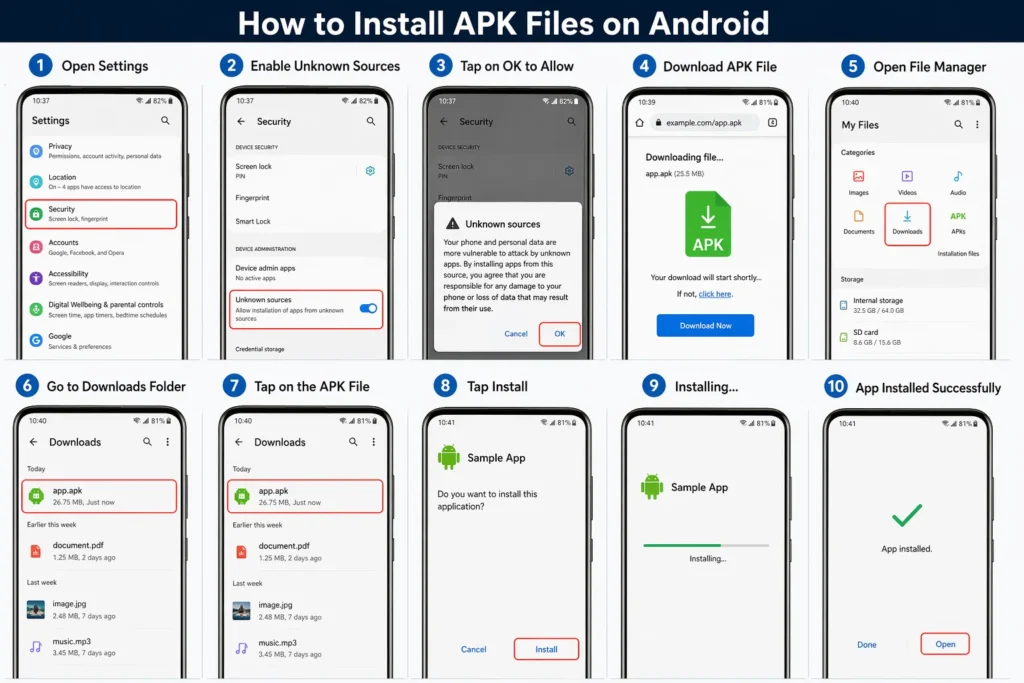
For Older Android Versions
- Open Settings
- Tap Security
- Enable Unknown Sources
- Confirm permission
Step 3: Open the File Manager
A file manager helps locate APK files stored on your device.
What Is a File Manager?
A file manager is an app that organizes folders and downloads.
Common Android file managers include:
- Files by Google
- Samsung My Files
- Xiaomi File Manager
- ES File Explorer
- Solid Explorer
How to Locate APK Files
- Open your file manager
- Navigate to the Downloads folder
- Locate the APK file
- Tap the APK file
The installation prompt will appear.
Step 4: Start APK Installation
After tapping the APK file, Android will display installation information.
Installation Screen Includes:
- App name
- Version number
- Permissions requested
- Install button
Tap Install to continue.
Installation may take a few seconds.
Step 5: Grant Required Permissions
Some apps request permissions during installation or first launch.
Common APK Permissions
Storage Access
Allows the app to read and save files.
Camera Permission
Required for photo or video functions.
Microphone Access
Needed for voice recording.
Location Access
Used for maps and location services.
Contacts Permission
Allows apps to access saved contacts.
SMS Permission
Used for OTP verification or messaging apps.
Why Permissions Matter
Permissions determine what an app can access.
Too many permissions may indicate risk.
Examples of suspicious permission requests:
- Calculator app requesting contacts
- Wallpaper app requesting microphone
- Flashlight app requesting SMS access
Always review permissions carefully.
Step 6: Open the Installed App
After installation finishes:
- Tap Open
- Launch the app
- Configure settings if needed
- Start using the application
The app will appear in your home screen or app drawer.
How to Install APK Files Using Browser Downloads
Many users install APK files directly after downloading.
Direct Browser Installation
- Download APK
- Tap notification bar download
- Open APK immediately
- Install app
This skips the file manager step.
How to Install APK Files Using File Manager
This method provides more control.
Installation Using File Manager
- Open file manager
- Go to Downloads folder
- Select APK file
- Tap Install
- Confirm installation
Common APK Installation Errors
Many users experience errors during installation.
Error 1: App Not Installed
Causes
- Corrupted APK
- Version conflict
- Low storage
- Incompatible Android version
Fixes
- Delete old app version
- Clear storage
- Re-download APK
- Restart device
Error 2: Parse Error
Causes
- Broken APK file
- Unsupported Android version
- Incomplete download
Fixes
- Download APK again
- Use compatible Android version
- Try different APK version
Error 3: Installation Blocked
Causes
- Unknown sources disabled
- Security restrictions
Fixes
- Enable unknown sources
- Disable Play Protect temporarily
Error 4: Insufficient Storage
Causes
- Device memory full
Fixes
- Delete unused apps
- Clear cache
- Remove large files
Error 5: Package Conflicts
Causes
- Existing app signature mismatch
Fixes
Install matching version
Uninstall previous version
How to Check APK File Safety Before Installation
Before installing APK files, follow safety checks.
Safety Checklist
- Verify website reputation
- Check user reviews
- Scan APK using antivirus
- Review permissions
- Compare file size
Best Practices for Installing APK Files
Use Trusted Sources
Only download APKs from reputable websites.
Keep Android Updated
Security updates improve protection.
Avoid Unknown MOD APKs
MOD APKs may contain malware.
Read App Permissions
Check what the app wants to access.
Backup Important Data
Create backups before testing APKs.
APK Installation Security Risks
Manual APK installation may introduce risks.
Common Risks
- Fake login screens
- Spyware
- Data theft
- Hidden tracking
- Banking malware
Users should remain cautious.
APK Installation on Different Android Brands
Samsung
Uses My Files and Samsung Security.
Xiaomi
Uses MIUI file manager.
Oppo
Requires permission management settings.
Vivo
May include additional security warnings.
OnePlus
Uses Oxygen OS installation flow.
APK File Installation Tips for Beginners
Use antivirus scanning
Start with trusted apps
Avoid suspicious download links
Learn permission settings
Check Android compatibility
Conclusion
Installing APK files on Android is simple once users understand the process.
The installation process involves downloading the APK, enabling unknown sources, locating the file through a file manager, granting permissions, and completing installation.
While APK installation provides flexibility and access to apps outside the Play Store, users must remain cautious.
Always download APKs from trusted sources, review permissions carefully, and stay aware of common installation errors.
Frequently Asked Questions
Can APK files harm my Android phone?
Yes, unsafe APKs may contain malware.
Do APK files require internet to install?
No, once downloaded, installation can happen offline.
Why does APK installation fail?
Common reasons include storage issues, version conflicts, or unsupported Android versions.
Are APK files legal?
Yes, many APK files are legal when distributed properly.
Do APKs update automatically?
Usually no. APK-installed apps often require manual updates.
Is enabling unknown sources dangerous?
Not necessarily, but users should install APKs carefully.